This guide covers what separates a strong email migration tool from a weak one, how migration paths differ across Microsoft 365/Office 365, on-premises Exchange, and Google Workspace (G Suite), and the practical steps that keep projects on track. Whether you're an IT manager handling an enterprise rollout or a business owner overseeing a smaller move, the goal is to help you make an informed decision before a single mailbox gets touched.
Key Takeaways
- Email migration tools automate the transfer of emails, contacts, calendars, and folder structures, cutting data loss risk versus manual methods.
- The three most common scenarios involve Microsoft 365/Office 365, on-premises Exchange, and Google Workspace, each with distinct tool requirements.
- Key features to evaluate: multi-platform support, OAuth 2.0 security, bulk migration capability, and post-migration validation.
- For enterprise-scale migrations or full Microsoft 365 rollouts, a specialist consulting partner reduces risk and compresses timelines.
What Is an Email Migration Tool and Why Does It Matter?
Email migration is the process of transferring messages, folder structures, calendars, contacts, and tasks from one platform to another — while preserving metadata like timestamps, read/unread status, and attachment integrity.
Manual methods (PST exports, drag-and-drop in desktop clients) break down fast at scale. They're prone to data corruption, missed items, and extended user disruption — particularly across Office 365, Exchange, and G Suite environments where data formats are incompatible.
Professional migration tools copy data to the destination while leaving the source intact. The source stays live throughout the transition, giving your team a verified fallback if anything goes wrong mid-migration.
Understanding the Three Major Migration Platforms
Migrating to or Within Microsoft 365
Microsoft provides three native migration methods, and choosing the wrong one is a common source of project delays:
| Method | Best For | Exchange Version |
|---|---|---|
| Cutover | Fewer than 150 mailboxes | Exchange 2003 or later |
| Staged | Larger deployments in batches | Exchange 2003/2007 only |
| Hybrid | Gradual transition, 150+ mailboxes | Exchange 2010/2013/2016 |
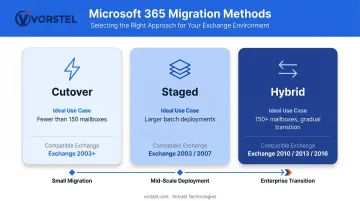
Microsoft also supports PST file import via its Import Service for archiving scenarios. Microsoft's own documentation confirms that while cutover technically supports up to 2,000 mailboxes, it's more practical for 150 users or fewer.
Migrating from On-Premises Exchange to the Cloud
Exchange-to-cloud migrations carry a distinct set of challenges that create unexpected complications:
- Mail flow continuity — ensuring no messages are lost during the transition window
- Active Directory synchronization — Azure AD Connect configuration must be validated before cutover
- Shared mailboxes and distribution groups don't always migrate cleanly and require separate handling
- On-premises connector configurations can silently break during cutover if not reconfigured in advance
Organizations with more than 150 mailboxes are almost always better served by a hybrid approach rather than a cutover migration. The hybrid model lets you move mailboxes gradually while maintaining coexistence between on-premises and cloud environments.
Migrating Between Google Workspace and Microsoft Platforms
Google-to-Microsoft migrations (and vice versa) require tools that handle a fundamental structural difference: Google uses a label-based system, while Outlook uses folders. During IMAP-based migrations, Gmail labels are mapped to folders — but this requires careful planning to avoid duplicate items and broken structures.
Microsoft documents that IMAP migration moves only email — contacts, calendar items, and tasks require entirely separate migration steps.
This isn't a niche scenario. Okta's 2022 Businesses at Work report found that 38% of organizations deploying Microsoft 365 also deployed Google Workspace, based on data from over 14,000 global customers.
For organizations running both platforms simultaneously, migration planning must account for coexistence — not just a one-time cutover.
Key Features to Look for in an Email Migration Tool
Multi-Platform and Protocol Support
The tool must natively support your source and destination environments. Verify compatibility with:
- Exchange (2013, 2016, 2019, and Subscription Edition)
- Microsoft 365/Office 365
- Google Workspace (Gmail, Calendar, Contacts)
- IMAP/POP servers
- Common formats: PST, MBOX, EML
A tool that only migrates to Microsoft 365 will become a liability if cross-tenant moves or reverse migrations arise later.
Data Security and Compliance
Security during migration isn't optional. IBM's 2025 Cost of a Data Breach report puts the global average breach cost at $4.4 million — and Verizon's 2025 DBIR found that third-party involvement in breaches doubled from 15% to 30%. Migration vendors handle your most sensitive data, so vendor controls matter enormously.
Minimum requirements:
- OAuth 2.0 authentication — Microsoft retired Basic authentication in Exchange Online for this reason
- TLS/SSL encryption in transit
- Audit logging for all migration activity
- Confirm alignment with applicable regulations (GDPR, HIPAA, SOC 2) based on your organization's compliance obligations
Batch and Bulk Migration Capabilities
Enterprise migrations involve hundreds to thousands of mailboxes. The tool must support:
- Parallel batch processing (not sequential, one-at-a-time transfers)
- Automated mailbox matching
- Off-peak scheduling to distribute network load
- Handling of oversized mailboxes (Microsoft's IMAP migration caps individual emails at 35 MB)
Pre-Migration Assessment and Delta Sync
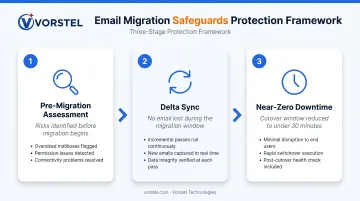
Bulk capability only matters if the migration starts clean. Strong tools run pre-flight checks before a single mailbox moves, and keep data in sync until the moment of cutover:
- Pre-migration assessment — flags oversized mailboxes, permission issues, and connectivity problems before they become mid-migration blockers
- Delta sync — incremental passes that capture emails arriving during the migration window, so the final cutover takes minutes rather than hours
- Near-zero downtime — for organizations that can't afford communication gaps, this combination typically reduces cutover windows to under 30 minutes
Top Email Migration Tools for Office 365, Exchange, and G Suite
| Tool | Best For | Key Limitation |
|---|---|---|
| Microsoft Migration Manager / EAC | Exchange-to-O365, Microsoft-only moves | Limited for cross-platform or complex hybrid scenarios |
| GWMME (Google) | Smaller Exchange/O365 to Google Workspace migrations | Manual setup; limited support; Windows-only installer |
| BitTitan MigrationWiz | Multi-tenant, cross-platform, high-volume migrations | Per-mailbox pricing ($14/user for Mailbox Migration, $17.50/user for User Migration Bundle) |
| CloudM Migrate | Enterprise migrations with file, calendar, and email | Requires larger IT team for full utilization |
| CodeTwo Office 365 Migration | Microsoft ecosystem-only migrations from Exchange/IMAP | Not suited for Google-to-Microsoft moves |
What sets each tool apart:
Microsoft Migration Manager is accessed through the Microsoft 365 admin center and works well for straightforward Exchange-to-O365 scenarios. It supports cutover, staged, and IMAP migrations but has meaningful limitations for complex hybrid environments.
GWMME is a free, server-side tool from Google that handles email, calendar, and contacts migration to Google Workspace. It documents limitations including calendar attachments, email filters, and out-of-office settings as non-migrated items.
BitTitan MigrationWiz is a cloud-based SaaS tool — no software to install — with broad platform compatibility and strong automation for batch migrations. Per-mailbox licensing at $14/user for mailbox migration makes costs predictable. Confirm current pricing directly before committing.
CloudM Migrate includes a pre-migration assessment dashboard and migrates files and calendars alongside email — useful for teams managing complex, multi-workload projects who need centralized visibility before and during the move.
CodeTwo Office 365 Migration offers automatic mailbox matching, off-hours scheduling, and tight Exchange workflow integration. A strong fit for organisations fully committed to the Microsoft ecosystem.
How to Execute Your Email Migration: A Step-by-Step Guide
Phase 1 — Assess and Plan
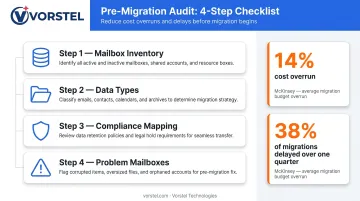
Before selecting a tool or moving any data, audit your current environment:
- Document mailbox inventory — count, total data volume, and size distribution
- Identify data types — email only, or email plus calendars, contacts, and tasks?
- Map compliance requirements — retention policies, legal holds, and DNS change procedures
- Flag problem mailboxes — oversized accounts, shared mailboxes, distribution groups
Poor planning has measurable consequences. According to McKinsey research on cloud migration, inefficiencies cost organizations 14% more in migration spend than planned annually, and 38% of companies experience migrations delayed by more than one quarter. Time spent in assessment directly reduces both costs and delays in production.
Phase 2 — Prepare, Test, and Configure
With your inventory documented, the next step is preparing the destination environment and validating your setup before any production data moves.
- Create destination mailboxes before migration begins — no tool creates these automatically
- Run a pilot migration with a small, non-critical subset of mailboxes to validate tool configuration
- Communicate timelines clearly to users — password changes during migration will break the process
- Confirm DNS, MX record, and autodiscover settings are ready before the production run
Phase 3 — Execute, Monitor, and Validate
- Execute the full migration in batches, not all at once
- Monitor the tool's dashboard for failed items in real time and address errors immediately
- Run a delta sync pass after initial migration completes to capture emails received during the window
- Verify data completeness with a representative sample of users before decommissioning the source
- Update MX records and reconfigure client apps only after user validation is complete
- Microsoft documents a minimum 72-hour wait after MX changes before deleting the cutover migration batch
Best Practices for a Smooth Email Migration
Follow these practices to reduce risk and keep the migration on track:
Keep the source active until validation is complete. Never decommission the source server until every user has confirmed their data is intact. Create full backups — including PST exports for critical mailboxes — before migration begins.
Run heavy workloads during off-hours. Schedule the largest sync jobs overnight or over weekends. Give end users a specific cutover time so they can prepare for the platform switch.
Don't underestimate enterprise-scale complexity. For organizations migrating hundreds of mailboxes, running hybrid Exchange environments, or consolidating their entire productivity stack into Microsoft 365, a specialist partner changes the risk profile significantly.
Vorstel Technologies offers Microsoft O365 Implementation services covering full deployment, configuration, and user adoption — typically completed within 2–4 weeks. Email migration is scoped as part of a broader Microsoft 365 rollout that includes SharePoint, Teams, and OneDrive, so nothing falls through the gaps.
Organizations still assessing migration complexity can start with a Zero-Fee Solution Evaluation to scope requirements before committing to an engagement.
Frequently Asked Questions
What is the best email migration tool for migrating to Office 365?
There's no single answer — it depends on project size and source platform. Microsoft's native Migration Manager works well for straightforward Exchange-to-O365 moves, but third-party tools like BitTitan MigrationWiz or CloudM are better suited for complex, high-volume, or cross-platform migrations from Google Workspace.
Can you migrate emails from Google Workspace to Microsoft 365?
Yes, this path is fully supported, but requires a tool that handles the structural differences between Google's label system and Outlook's folder structure. IMAP-only migrations won't transfer contacts, calendar data, or tasks — those require separate handling.
What data is transferred during an email migration?
The scope depends on the tool and method. Professional tools typically migrate emails, folder structures, contacts, calendars, and tasks. Some tools also carry over metadata like read/unread status, flags, and folder permissions — worth confirming before you commit to a platform.
What is the difference between cutover, staged, and hybrid Exchange migration?
Cutover moves all mailboxes at once and suits organizations with fewer than 150 mailboxes on Exchange 2003 or later. Staged migrates in batches and applies to Exchange 2003/2007 environments. Hybrid maintains simultaneous on-premises and cloud mailboxes — the right choice for Exchange 2010+ environments wanting a gradual, controlled transition.
How long does an email migration to Office 365 typically take?
Timelines vary by mailbox count, data volume, and network speed. Small migrations can complete in hours; large enterprise migrations with thousands of mailboxes may take several weeks. Proper batching and off-hours scheduling compress the effective window considerably.
Do I need a professional to handle an email migration?
Small migrations can be managed by an IT-capable in-house team using a well-documented tool. For complex Exchange environments, hybrid deployments, or migrations integrated with a full Microsoft 365 rollout, a certified implementation partner reduces risk, accelerates delivery, and prevents costly configuration errors.