
Introduction
Migrating to Office 365 sounds straightforward — until it isn't. Many organizations hit the same wall: timelines slip, batches fail mid-flight, and users lose access to calendars or delegated mailboxes nobody flagged during planning. The tool wasn't wrong. The approach was.
Mailbox data isn't just email. Every migration moves calendars, contacts, tasks, folder structures, and in many cases delegate permissions and shared mailbox access — all of it tied directly to daily operations. Lose a timestamp, drop a delegate permission, or misconfigure a migration endpoint, and you're looking at hours of post-migration cleanup and potential compliance exposure.
This guide covers the four migration paths, what separates a capable migration tool from a basic one, the tactical steps that shorten a migration timeline, and when native Microsoft tools are enough versus when third-party solutions earn their cost.
Key Takeaways
- Four migration paths exist — cutover, staged, hybrid, and IMAP — each suited to a different source environment and mailbox count
- Throttling management, delta sync, and permissions handling separate fast migrations from failed ones
- Most time is lost or saved during pre-migration prep; audit your environment before moving a single mailbox
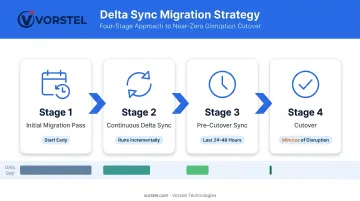
- Start delta sync early, let incremental runs shrink your data gap, then cut over with minimal downtime
- Native tools handle smaller Exchange-to-M365 moves; cross-platform and large-scale scenarios typically require a dedicated migration tool
Four Migration Paths for Moving Mailbox Data
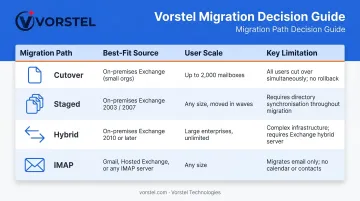
The single most common reason migrations run over time isn't a bad tool — it's the wrong path for the environment. Each path below maps to a specific source environment and user scale.
Cutover Migration
All mailboxes move in a single batch. Microsoft recommends cutover migration for 150 users or fewer, even though the technical ceiling is 2,000 mailboxes. Above ~150, provisioning time becomes the bottleneck. Best fit: Exchange 2003–2013 with a small user base and an acceptable cutover window.
Staged Migration
Mailboxes move in batches over days or weeks. Designed for Exchange 2003 or 2007 environments where a gradual user transition reduces risk — both are now out of support. Requires directory synchronization. Trade-off: lower risk per batch, longer overall project duration.
Hybrid Migration
The organization runs on-premises Exchange and Exchange Online simultaneously, moving users in controlled waves. This is the right path for Exchange 2010 or later, especially when coexistence matters — both environments need to route mail correctly during the transition. Most flexible for large enterprises; most configuration-intensive to set up.
IMAP Migration
Used when migrating from non-Exchange systems: Gmail, Zimbra, Lotus Notes, and comparable platforms. The critical limitation is scope — IMAP migration transfers email folders only. Contacts, calendars, and tasks require separate handling. You must also pre-create Microsoft 365 mailboxes before the IMAP migration can begin.
| Migration Path | Best For | Key Limit |
|---|---|---|
| Cutover | Exchange 2003–2013, ≤150 users | Single cutover window required |
| Staged | Exchange 2003/2007, large environments | Longer timeline, directory sync needed |
| Hybrid | Exchange 2010+, complex enterprises | High setup complexity |
| IMAP | Non-Exchange systems | Email only — no contacts, calendars, tasks |
Must-Have Features in an Office 365 Migration Tool
Not every migration tool is built equally. These five capabilities determine whether your migration finishes cleanly — or stalls halfway through and takes the weekend with it.
Multi-Workload Support
The tool must handle email, calendars, contacts, tasks, and — where relevant — OneDrive files and SharePoint content. Migrating email in isolation frequently breaks workflows that depend on shared calendars or delegated access, requiring manual remediation that eats up post-migration hours.
Throttling Management and Multi-Threaded Transfer
Microsoft 365 throttles inbound data connections to protect service performance. Exchange Online limits documentation confirms a 150 MB migration message-size limit for move-based migrations using the Exchange Mailbox Replication Service.
Good tools automatically detect throttling and distribute transfers across multiple threads to maintain throughput. Without this, migrations slow unexpectedly and IT teams end up chasing phantom errors.
Permissions and Metadata Preservation
The tool should migrate:
- Delegate access and Send on Behalf rights
- Shared mailbox permissions
- Folder structures
- Message metadata (timestamps, read/unread status)
Stripping any of these triggers hours of manual cleanup after cutover. Note: publicDelegates (Send on Behalf) does not automatically write back to Active Directory after hybrid migration without Entra Connect Exchange hybrid deployment settings version 1.1.553 or later — plan for restamping this post-migration.
Pre-Migration Reporting and Error Flagging
A good tool scans the source environment before migration starts and surfaces:
- Oversized mailboxes approaching quota
- Corrupted items
- Accounts on legal hold
- Permission conflicts
Problems found mid-migration halt entire batches. Pre-migration scanning moves those discoveries to a phase where they're fixable without disruption.
Scheduling, Batch Management, and Delta Sync
Microsoft documents incremental synchronization every 24 hours for most migration types. A proper tool uses this capability to run continuous delta syncs — new emails arriving during the migration window get captured before cutover, compressing the final switchover from hours to minutes. Scheduling migrations for off-hours and running batches in parallel are the two biggest levers for cutting total migration time.
How to Move Mailbox Data Fast: Practical Tactics
Speed in mailbox migration comes from preparation, not rushing. Every problem found on migration day was preventable.
Pre-Migration Preparation
Run a full audit of source mailboxes before migration day:
- Identify oversized mailboxes and reduce them below quota
- Check for auto-expanding archives — these require separate handling
- Pre-provision MailUser objects in the target tenant with correct attributes: ExchangeGUID, LegacyExchangeDN, and proxy addresses (critical for cross-tenant scenarios)
- Flag accounts on legal hold — Microsoft confirms that litigation hold settings are preserved after mailbox moves to Exchange Online, but mailboxes on hold cannot be migrated until the hold is released
Every issue caught here prevents a mid-migration failure that halts an entire batch.
Batch Sizing Strategy
Avoid migrating everything in one pass. Structured batches allow faster error identification and re-queuing without restarting entire migrations. Key operational timings to know:
- Migration batches with "Synced" status and no activity for 60 days are stopped automatically
- Stopped or failed batches are removed after 90 days
- Completed batches are removed after 60 days
Plan batch timelines accordingly to avoid losing migration state.
Schedule During Off-Peak Windows and Run Parallel Batches
Run migrations overnight or on weekends when Exchange Online throttling thresholds are less contested. Use the migration tool's parallel processing capability to run multiple batches concurrently. Sequential batch processing is one of the most common and avoidable reasons migrations take longer than expected.
Use Delta Sync to Compress the Cutover Window
Start the initial migration pass well before the cutover date. Let the tool run incremental syncs continuously — by cutover day, only the last 24–48 hours of mail delta needs to transfer. This shrinks end-user disruption from hours to minutes.
Engage Expert Support for Complex Environments
In hybrid Exchange configurations, cross-tenant scenarios, and large-scale moves, the most costly delays trace back to the same root causes: misconfigured migration endpoints, incorrect organization relationship permissions, and unmet Cross-Tenant User Data Migration license requirements.
Vorstel Technologies delivers Microsoft O365 implementation services and can step in at any stage of the migration journey (planning, mid-migration, or post-migration remediation) to resolve bottlenecks and accelerate delivery.
Native Tools vs. Third-Party Solutions: A Practical Comparison
What Microsoft's Native Tools Cover
Microsoft's native options include:
- Exchange Admin Center (EAC) migration batches: manages cutover, staged, IMAP, and hybrid moves; included at no additional cost
- SharePoint Migration Tool (SPMT): handles SharePoint and OneDrive content
- Microsoft FastTrack: beginning in late 2024, FastTrack offers a cross-tenant migration preview covering Exchange Online, SharePoint, and OneDrive for eligible customers
Native tools offer deep API integration, strong documentation, and no separate licensing cost. Their limits: primarily built for Microsoft-to-Microsoft migrations, limited automation for batch scheduling, and no coexistence tooling for non-Microsoft source environments.
When Third-Party Tools Add Real Value
Third-party tools earn their cost in specific scenarios. Two tools stand out based on source environment support and pricing transparency:
- BitTitan MigrationWiz: supports Exchange-to-M365, M365-to-M365, Google Workspace-to-M365, IMAP, POP, and Zimbra 6+ sources. Priced at $14.00 per user for mailbox licenses (after June 2025), with a User Migration Bundle at $17.50 per user. Note: BitTitan states mailbox sharing settings including aliases, delegates, SendAs, and SendOnBehalf are not migrated automatically.
- Cloudiway: covers Exchange 2010–2019 to M365, using EWS for email, contacts, and calendars, and PowerShell for mailbox permissions and shared mailboxes. Migration pricing starts from €450 (approximately $490 USD).
Decision Framework
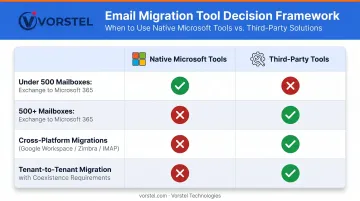
The right approach depends on your source environment, mailbox count, and coexistence requirements. Use this as a starting point:
| Scenario | Recommended Approach |
|---|---|
| Under 500 mailboxes, Exchange on-premises to M365 | Native tools with careful planning |
| 500+ mailboxes, Exchange to M365 | Third-party tool or managed migration service |
| Cross-platform (Google Workspace, Zimbra, IMAP) | Third-party tool required |
| Tenant-to-tenant migration with coexistence | Third-party tool or expert partner |
Security and Compliance: What You Can't Overlook
Migration security isn't optional — a single misconfiguration can expose sensitive mailbox data or stall the entire move. Here's what to lock down at each stage.
During Migration
Key security requirements to enforce:
- End-to-end encryption of data in transit
- OAuth 2.0 authentication between source and target tenants — Microsoft has removed Basic authentication from Exchange Online across all connection types, including EWS, IMAP, and POP
- Microsoft Entra ID for identity management, ensuring permissions are assigned correctly and unauthorized users cannot access migrated data mid-move
- Accounts on legal hold must be identified during pre-migration analysis — holds block migration and must be released first
Post-Migration Compliance
After migration completes:
- Review audit logs to confirm all mailboxes transferred and no data was lost or duplicated
- Organizations under GDPR, HIPAA, or ISO 27001 requirements should verify the migration tool's compliance certifications
- For cross-tenant scenarios spanning different geographies, confirm that data residency rules are respected for each tenant's jurisdiction
Frequently Asked Questions
What data is included when you migrate a mailbox to Office 365?
Standard mailbox migration moves emails, calendar items, contacts, tasks, and notes. Teams chat history is not migrated due to Microsoft API restrictions, Outbox items stored client-side may not transfer, and auto-expanded archive mailboxes require separate handling outside the standard migration path.
What is the difference between cutover and staged migration in Office 365?
Cutover migration moves all mailboxes at once and is best for organizations with 150 users or fewer. Staged migration moves mailboxes in batches over time and is designed for Exchange 2003/2007 environments with larger user bases that need a gradual transition rather than a single cutover window.
How long does an Office 365 mailbox migration typically take?
Migration speed depends on mailbox size, item count, throttling behavior, network capacity, and tool configuration. Microsoft's documented operational benchmark is 24-hour incremental synchronization for most migration types. Running delta sync continuously before cutover narrows the final data gap to minutes, not hours.
Do I need a third-party migration tool, or will Microsoft's native tools work?
Native tools handle straightforward Exchange-to-M365 migrations under 500 mailboxes well. Third-party tools become necessary for cross-platform migrations, tenant-to-tenant moves requiring coexistence, or larger environments where advanced batch scheduling, parallel processing, and detailed error reporting are needed.
How can I minimize user downtime during an Office 365 mailbox migration?
Start the initial migration pass early and use delta sync so only a small data gap remains at cutover. Schedule the final cutover during off-hours — typically overnight or on weekends — to minimize business disruption.
What happens to mailbox permissions and delegates after migration?
Send on Behalf permissions (publicDelegates) do not automatically migrate and must be restamped post-move using Set-MailUser -GrantSendOnBehalfTo. Moving mailbox owners and their delegates in the same batch shortens the period when delegated access is unavailable.