Introduction
Most Office 365 migrations don't fail because of bad intentions — they fail because teams underestimate what's actually involved. Moving email, data, and workloads to Microsoft 365 means navigating strict technical constraints, licensing requirements, and protocol deprecations that can derail even well-planned projects.
This guide gives IT administrators, business leaders, and digital transformation teams a structured, practical path through every migration stage — from assessment to cutover — without data loss or productivity disruption. Microsoft 365 Commercial seats have grown 6% year-over-year to over 450 million, but joining that number successfully requires rigorous planning, the right tooling, and realistic timelines.
Key Takeaways
- Office 365 migration moves email, files, and workloads from on-premises Exchange, Google Workspace, or other systems to a Microsoft 365 cloud tenant
- Choosing the right method (cutover, staged, IMAP, hybrid, or cross-tenant) depends on organization size, current infrastructure, and timeline
- Successful migrations follow four steps: pre-migration assessment, environment preparation, phased execution, and post-migration validation
- Common failure points include skipping pilot tests, ignoring licensing requirements, and not preparing the destination tenant before starting
- A Microsoft-certified consulting partner can reduce downtime and compress deployment timelines considerably
What Is Office 365 Migration and Why It Matters
Office 365 migration is the process of transferring an organization's users, email accounts, calendars, contacts, files, and other workloads to a Microsoft 365 cloud environment. Common source systems include on-premises Exchange, Google Workspace, legacy mail servers, and existing M365 tenants.
Why organizations migrate:
- Consolidation after mergers or acquisitions — integrating disparate email systems into a unified platform
- Retiring aging on-premises infrastructure, eliminating hardware costs and MSP contracts — Forrester research shows organizations save $297,000 over three years by moving off legacy servers
- Gaining access to Microsoft collaboration tools — Teams, SharePoint, OneDrive, and integrated security features
- Improved security and scalability through cloud-native threat protection, compliance tools, and elastic capacity
One quick clarification on naming: Microsoft officially rebranded "Office 365" to "Microsoft 365" on March 30, 2020, with changes taking effect April 21, 2020. The terms are still used interchangeably across the industry, though M365 is the current branding.
Migration complexity scales with the size of the organization. The more mailboxes, data volume, and coexistence requirements involved, the more planning the transition demands — which is why understanding the process up front saves significant time and risk later.
Types of Office 365 Migration Methods
Microsoft supports five distinct migration methods, and choosing the wrong one can mean extended downtime, data gaps, or a migration that outlasts its budget. The right path depends on your source environment, user count, and how much coexistence you need while the transition is underway.
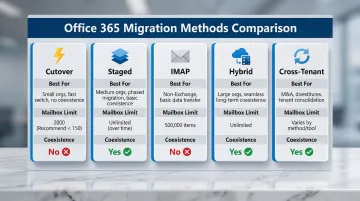
Use the table below to orient yourself before diving into each method:
| Method | Best For | Mailbox Limit | Coexistence |
|---|---|---|---|
| Cutover | Small orgs, fast moves | ~150 (max 2,000) | No |
| Staged | Mid-to-large Exchange orgs | Unlimited (batched) | Yes |
| IMAP | Non-Exchange (Gmail, etc.) | No hard limit | No |
| Hybrid | Large orgs, phased moves | Unlimited | Yes |
| Cross-Tenant | Mergers & acquisitions | Unlimited | Partial |
Cutover Migration
Moves all mailboxes at once in a single operation. Suited for smaller organizations with a maximum of 2,000 mailboxes, though Microsoft recommends only 150.
When to use:
- Small organizations with straightforward requirements
- Limited coexistence needs
- Short migration windows acceptable
Limitations:
- Hard cutover window with potential for extended downtime
- Not practical for large organizations due to time constraints
Staged Migration
Used for larger on-premises Exchange environments where mailboxes are migrated in batches over weeks or months. Coexistence between on-premises and cloud is maintained throughout.
When to use:
- Organizations with more than 150 mailboxes
- Need for gradual, phased migration
- Business continuity requirements during transition
Requirements:
IMAP Migration
Use IMAP migration when moving from non-Exchange systems like Google Workspace or other IMAP-enabled servers. Only email transfers — calendars and contacts require separate tools.
When to use:
- Google Workspace to M365 moves
- Legacy IMAP mail servers
- Email-only migration scenarios
Limitations:
- Maximum 500,000 items per mailbox
- Maximum message size of 35 MB
- Calendars and contacts require separate migration tools
Hybrid Migration (Full and Minimal)
Hybrid configuration lets organizations run Exchange on-premises and Exchange Online simultaneously — useful for enterprises that need a phased approach without a hard cutover. Full Hybrid suits complex environments requiring rich coexistence; Minimal Hybrid works when you need a faster setup with fewer infrastructure dependencies.
Full Hybrid:
- Requires complete Exchange infrastructure
- Supports rich coexistence features
- Requires Entra ID synchronization
Minimal Hybrid:
- Lighter-weight setup
- Quicker deployment
- Fewer infrastructure requirements
Cross-Tenant Migration
Used for mergers, acquisitions, or divestitures where mailboxes must be moved between two different Microsoft 365 tenants.
Requirements:
- Special licensing (Cross-Tenant User Data Migration add-on)
- Specific Entra ID configuration
- Target MailUser setup with matching ExchangeGUID, ArchiveGUID, and LegacyExchangeDN
What migrates:
- Email, contacts, calendars, tasks, notes, and Recoverable Items folders
What doesn't migrate:
How to Migrate to Office 365: A Step-by-Step Guide
All successful migrations follow four structured phases — Assessment, Preparation, Execution, and Cutover. Skipping or compressing any phase is the most common source of data loss, extended downtime, and user disruption.
Phase 1: Assessment and Planning
Start with a full inventory of the source environment before touching any configuration:
- Count all mailboxes (user, shared, resource)
- Document data volumes and sizes
- Assess current licensing
- Flag mailboxes on legal hold (cannot be migrated until holds are resolved)
- Verify DNS records and domain ownership in M365 Admin Center
Then define scope and ownership for the migration itself:
- Choose migration method based on organization size and source platform
- Identify pilot users for the initial test wave
- Establish a rollback plan
- Assign roles: migration admin, helpdesk support, communication lead
Phase 2: Prepare Source and Destination Environments
On the source side, prepare the environment for outbound access:
- Enable Exchange Web Services (EWS) access at organization and user levels (required for most migration tools)
- Create a dedicated migration service account with appropriate permissions
- Export user list to CSV for bulk provisioning
On the destination (M365 tenant) side, build out the receiving infrastructure:
- Create user accounts and assign appropriate Microsoft 365 licenses
- Configure DNS records: MX, Autodiscover, and SPF
- Set up the migration endpoint
- Test administrator access to destination mailboxes using the .onmicrosoft.com domain
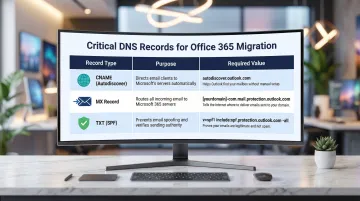
Critical DNS records:
| Record Type | Purpose | Required Value |
|---|---|---|
| CNAME (Autodiscover) | Helps Outlook clients connect to Exchange Online | Alias: Autodiscover Target: autodiscover.outlook.com |
| MX | Routes incoming mail to Exchange Online | Target: |
| TXT (SPF) | Prevents email spoofing | v=spf1 include:spf.protection.outlook.com -all |
Phase 3: Execute the Migration
Always run a pilot before committing to a full migration:
- Select 5–10 representative users from different departments
- Validate that emails, calendars, contacts, and folders migrated correctly
- Use results to identify and fix configuration issues before proceeding
Once the pilot passes, execute the full migration:
- For staged or hybrid: migrate in batches
- For cutover: execute a single migration event
- Monitor the migration dashboard for errors, throttling, or failed items
- Note: Already-migrated items updated at the source mid-migration will sync every 24 hours during incremental synchronization
Phase 4: Post-Migration Validation and Cutover
Before cutting over, verify data integrity for all migrated users:
- Check that emails, calendars, contacts, tasks, and folder structures appear correctly in Outlook/OWA
- Confirm that items not supported by the migration method are identified and handled manually (such as safe sender lists and journal items)
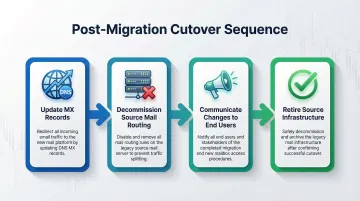
Then complete the cutover in sequence:
- Update MX records to point to Microsoft 365
- Decommission source mail routing
- Communicate new login process and workflow changes to end users
- Retire or repurpose source infrastructure after the stabilization period
Change the DNS Time-to-Live (TTL) setting on your current MX record to 3,600 seconds or less before starting migration — this prevents mail delivery delays during the final cutover window.
Office 365 Migration Best Practices
Run Multiple Migration Passes
Perform a pre-stage pass to move the bulk of historical data, then a final delta pass close to cutover to capture recent changes. This minimizes the final migration window and reduces user disruption.
License Before You Migrate
Ensure every user being migrated has an appropriate Microsoft 365 license assigned before migration begins. Migrations fail if licenses are missing, and last-minute licensing delays are one of the most avoidable causes of project overruns.
For cross-tenant migrations: Apply the Cross-Tenant User Data Migration add-on license to eligible base plans before starting.
Test Thoroughly Before Going Live
Run a pilot wave of 5–10 representative users from different departments before triggering organization-wide migration:
- Validate the full mailbox experience in the destination tenant
- Document every issue uncovered during the pilot
- Resolve all findings before proceeding to full cutover
Plan for Modern Authentication
Microsoft has deprecated the ApplicationImpersonation role (completed March 2025) and is retiring EWS in Exchange Online effective October 2026.
Ensure your migration approach uses modern authentication and Microsoft Graph API-compatible methods. Avoid configurations that rely on legacy authentication.
Engage a Certified Microsoft Consulting Partner
Organizations migrating large mailbox volumes, running hybrid configurations, or executing cross-tenant moves benefit from having an experienced partner who can take over the migration at any stage.
Vorstel Technologies supports enterprises at any point in that process — from initial planning through post-migration adoption. Their Cloud Team delivers Microsoft 365 implementation services with an average 92% faster deployment cycle compared to industry benchmarks, helping organizations stay on schedule and minimize user impact.
Common Mistakes and Misconceptions in Office 365 Migration
Treating Migration as a One-Time Data Copy
Many teams assume migration is a single-pass event and do not plan for delta syncs, mid-migration updates, or items excluded by the migration method.
What's often missed:
- Calendar acceptance emails
- Safe sender and block lists
- Teams private chat history
- Client-side Outlook rules
These data types fall outside what most migration tools handle automatically — plan for manual processes to cover them before cutover.
Skipping Destination Tenant Preparation
Starting migration before the destination environment is fully configured is one of the most common — and costly — errors teams make. Unlicensed users, misconfigured DNS, and untested admin access all create problems that surface mid-migration.
This causes:
- Failed migrations that require restarts
- Inconsistent mailbox states
- Extended project timelines
Underestimating the Timeline and Change Management Burden
Organizations often scope the technical work correctly but underestimate everything around it — user communication, helpdesk readiness, training on new Outlook and Teams workflows, and the time needed to retire legacy systems.
McKinsey research finds that 70% of transformations fail due to poor execution. According to Prosci, projects with excellent change management are seven times more likely to meet objectives and nearly five times more likely to stay on schedule.
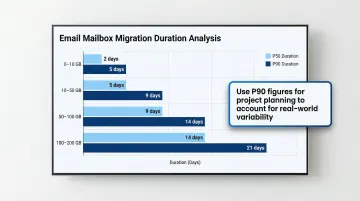
Migration timelines by method and scale:
| Mailbox Size | P50 Duration (Cross-Tenant) | P90 Duration (Cross-Tenant) |
|---|---|---|
| 0 - 10 GB | 1 day | 1 day |
| 10 - 50 GB | 1 day | 2 days |
| 50 - 100 GB | 2 days | 5 days |
| 100 - 200 GB | 3 days | 6 days |
Source: Microsoft 365 migration performance benchmarks
Use P90 figures when building your project plan — they account for the slowest 10% of mailboxes, which are often the ones that cause deadline slippage. Cutover migrations for small organizations can wrap up in a few days; staged or hybrid migrations for enterprises with thousands of mailboxes routinely stretch to several weeks or months.
Frequently Asked Questions
What is Office 365 migration?
Office 365 migration moves users, email accounts, calendars, contacts, and related data from an on-premises system or third-party platform into a Microsoft 365 cloud tenant. The goal is to give organizations access to Microsoft 365's collaboration, security, and productivity tools.
What are the different types of migration in Office 365?
The five main migration types are: cutover (all at once, small organizations), staged (batches from on-premises Exchange), IMAP (non-Exchange sources like Gmail), hybrid (coexistence between on-premises and cloud), and cross-tenant (between two M365 tenants during mergers or divestitures).
Does Microsoft have a migration tool?
Microsoft offers native migration capabilities through the Exchange Admin Center and Microsoft 365 Admin Center, including Migration Advisor and the FastTrack benefit for organizations with 150+ eligible licenses. Third-party tools like MigrationWiz are also widely used for complex or large-scale migrations.
How long does an Office 365 migration take?
Timelines vary significantly: a cutover migration for a small organization can complete in a few days, while staged or hybrid migrations for enterprises with thousands of mailboxes can take several weeks to months. Data volume, pilot testing, and upfront planning all affect how long the process takes.
What data is migrated during an Office 365 migration?
Typically migrated: emails, folders, calendars, contacts, tasks, notes, and server-side mailbox rules. Items that may not transfer — including safe sender/block lists, journal items, and Teams private chat history — depend on the migration method and should be identified during planning.